
422GW Dash Cam Support


Default Icon Hover Icon

Manuals

Default Icon Hover Icon

My Nextbase Player

Default Icon Hover Icon

Firmware

Default Icon Hover Icon

Nextbase App

Default Icon Hover Icon

FAQs

Default Icon Hover Icon

Videos

Default Icon Hover Icon

Rear Camera & Accessories Manual

Manuals

Here you can find the latest 422GW manual.

Click the blue arrow to download your chosen manual. 

Software

Here is the latest version of the MyNextbase Player computer software.

The minimum system requirements to allow this software to function are: Windows 7 OR MacOS 10.9,Processor : Intel Core i5, Memory: 4GB, Display resolution: 1280 x 720 or higher.  

Firmware

Firmware for your product

Here you can find the latest firmware for your 422GW Dash Cam 


Updating instructions here.

Nextbase App

The latest version of the Nextbase mobile app can be downloaded from the Google Play Store or Apple App Store.

The minimum phone requirements are: Bluetooth 4.2 (Android and Apple), Android 8 or above and iOS 13 or above. 

FAQs

+ Why switch to the Nextbase app?

We’re moving to the Nexbase app to provide a faster, more reliable, and feature-rich experience when using your Dash Cam.


The new Nextbase app offers improved download speeds, making it quicker and easier to save footage to your phone. You’ll also gain access to new driver statistics, giving you additional insight into your journeys and driving behaviour.


By switching to the Nextbase app, you’ll be able to use Guardian Mode Lite and Witness Mode Lite, allowing you to monitor your vehicle when you’re not there and get extra support if you ever feel uncomfortable on the road.

+ How do I check my Dash Cam's current firmware version?

You can easily check what firmware version your Dash Cam currently has on the Dash Cam itself.

1) Turn the Dash Cam on

2) Stop it recording (by pressing the red square in the bottom left of the screen)

3) Go into Settings (the settings icon will show in the top left of the screen once a recording is stopped)

4) Go into Setup settings

5) Scroll across to ‘System Info’

6) Look at the Firmware number RXX.XX.

Then compare it to the Firmware number stated above. 

+ Why do I need to update my Dash Cam's firmware?

Our Developers are always working to improve the functionality of our cameras and provide new features, such as different languages. We can do this even once you have your camera by releasing new firmware. To benefit from these improvements and updates, please check your Dash Cam's firmware and update it if there's an update available.

+ How long does the battery last & How do I test the battery?

The 422GW has an internal battery for emergency uses, such as the loss of power during an incident. This will allow the camera to continue recording to the end of the clip before switching off. This internal battery has around 10-15 minutes of battery life. If you also use the Rear Camera added, the battery life is reduced due to the additional power draw.

How do I test the battery

1) Take your Dash Cam inside and plug it into mains power or a computer using the Nextbase provided USB cable.

2) Remove the SD card and any rear camera and press the reset button on the underside of the Dash Cam. Then turn the Dash Cam on. Please turn Parking Mode off and turn Screen Saver off as these could interfere with the test results.

3) Let it charge for 2-3 hours whilst turned off (without a rear camera).

4) Unplug the power cable, turn the Dash Cam on and time how long the Dash Cam stays on for. The time it takes for the battery to drain will help us identify the root cause.

5) Please remember that after this test your Dash Cam will once again need charging as the battery will be flat.

The battery should last for 8-10 minutes during the above test. 

+ When I turn my camera on, the screen has frozen and/or the camera is making an audible alarm.

This is symptomatic of an SD card failure.

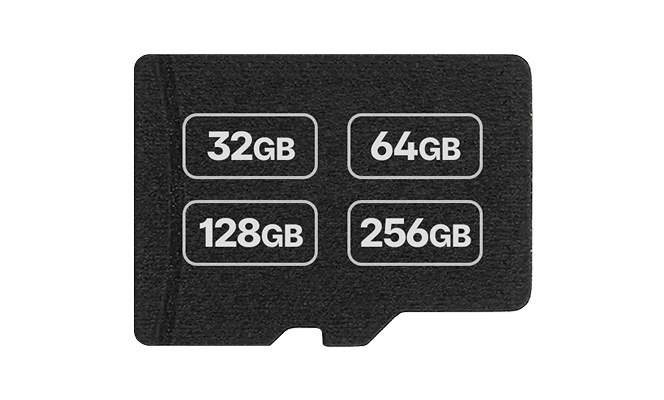
Please check that your card is not larger than 128GB and has a minimum U3 class.

Please remove the SD card, then press the reset button on the underside of the Dash Cam. Then, without the SD card inserted, please turn on the Camera. Does it now start normally? If so, then the SD card has either failed due to lack of formatting or is not compatible for Dash Cam usage.

+ How to move from MyNextbase Connect to the Nextbase App

There are two ways to switch:


 Option 1: Keep your footage

  1. Open MyNextbase Connect.
  2. Tap the menu (top left).
  3. Tap Move to the Nextbase App.
  4. Tap Move my data.
  5. Download the Nextbase App using the on-screen prompt.
  6. Go back to MyNextbase Connect and tap Copy data.
  7. Copying may take a few minutes depending on how much footage you’ve saved.
  8. Tap Move.
  9. Confirm MyNextbase Connect will be disabled → tap Open Nextbase App.
  10. Connect your Dash Cam to the Nextbase App.
  11. You’re all set! ✅

⚠️ MyNextbase Connect will be disabled after migration.


Option 2: Start fresh

  1. Unpair your Dash Cam from Bluetooth settings on your phone.
  2. Delete the MyNextbase Connect app.
  3. Download the Nextbase App from the App Store/Play Store.
  4. Follow the first-time setup instructions.

⚠️ Using this method will delete all files saved in MyNextbase Connect — they won’t carry over.

+ How do I update my Dash Cam's Firmware?

 “1️⃣ SD Card (PC or Mac)

  1. Download the latest firmware from your Dash Cam’s support page.
  2. Format your SD card on your computer.
  3. Copy the .bin file to the SD card.
  4. Insert SD card into Dash Cam (powered off).
  5. Plug in power — update starts automatically.


2️⃣Nextbase App

  1. Connect Dash Cam to the Nextbase App via Wi-Fi.
  2. Select More.
  3. Select Firmware Update.


3️⃣ MyNextbase Player (Series 2 only)

  1. Install MyNextbase Player on your computer.
  2. Connect Dash Cam via USB.
  3. Select Firmware Update on the Dash Cam.
  4. Click Update Dash Cam in MyNextbase Player.

+ What type of Micro SD card should I use in the 422GW and what is the maximum compatible Micro SD card size?

The maximum compatible SD card for the 422GW is 128GB. We would recommend a Dash Cam compatible 8GB-128GB U3 Micro SD card, specifically designed for Dash Cam or CCTV usage. We would recommend a Nextbase SD card for guaranteed functionality within a Nextbase product.

+ Why would I need a HardWire Kit?

If you intend on using Parking Mode on your camera, then we would instead recommend using a Hard Wire Kit, not the Cigarette Lighter Cable. The Hard Wire Kit will allow the camera to draw nominal current from the car's battery, preventing the cam's battery from being drained. The Hard Wire Kit has an in-built voltage cut off which protects the car's battery from being drained below 11.6V. We'd recommend using a Permanent Live fuse with Parking Mode enabled.

+ Why do I have two recordings for every clip?

As you can no longer Disable Dual files

Videos

Rear Camera & Additionalsupport Manual

Rear Camera & Accessories Manual

Camera Additionalsupport

Series 2 Accessories Support

Read More

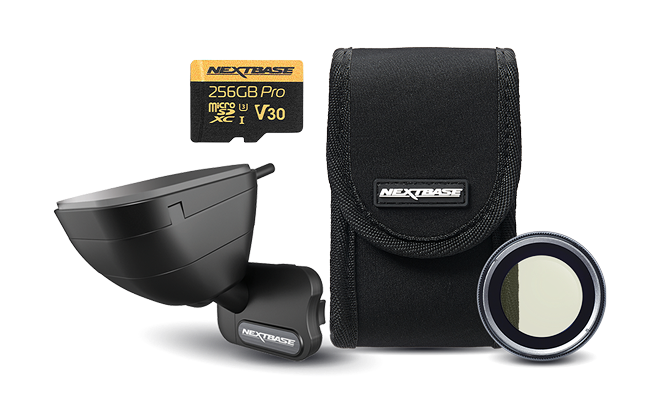
Enhance your Dash Cam with modules and accessories

Sold out
Sold out
Sold out
Sold out

Didn't find what you are looking?

Search in our extensive Knowledge Base

Nextbase Dash Cams

See what everyone is saying.


Joanne Watkinson

Awesome technical support

“…The camera is excellent and the service from Nextbase was exceptional.”

John Sinclair

Excellent Service

“…Very helpful and understood our query fully”

Terence Lewis

Buying online easy

“Very easy process to purchase, simple to follow instructions”

Lea Richards

Very Clear

“Well presented and easy instructions”